הזמנות 2 דקות
שיוך נהג ורכב להזמנה
איך משייכים נהג ורכב להזמנה שנמצאת במצב לא משויך
מתי משתמשים בזה?
ברגע שיש הזמנה במצב התקבל ללא נהג משויך, הסדרן צריך לשייך לה נהג ורכב. בלוח הבקרה הראשי, מונה לא משויך מציג כמה הזמנות עדיין מחכות לשיוך.
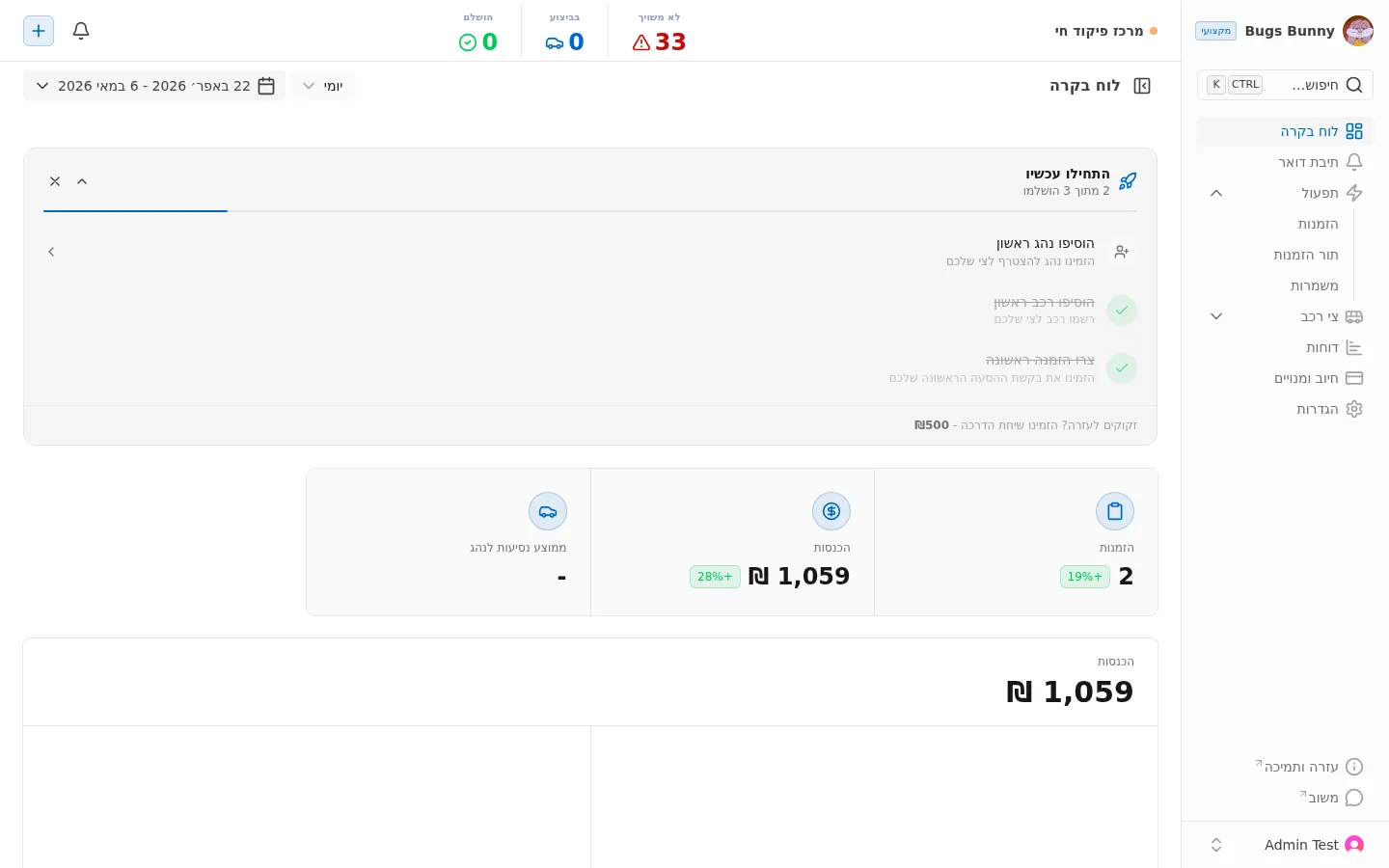
שלבים
1. מעבר לרשימת ההזמנות
תפריט: תפעול ← הזמנות.
2. בחירת ההזמנה
לחיצה על שורת הזמנה פותחת את פרטיה. שם אפשר להוסיף נהג ורכב.
3. בחירת רכב מהצי
הרכבים הזמינים נמצאים תחת צי רכב ← רכבים:
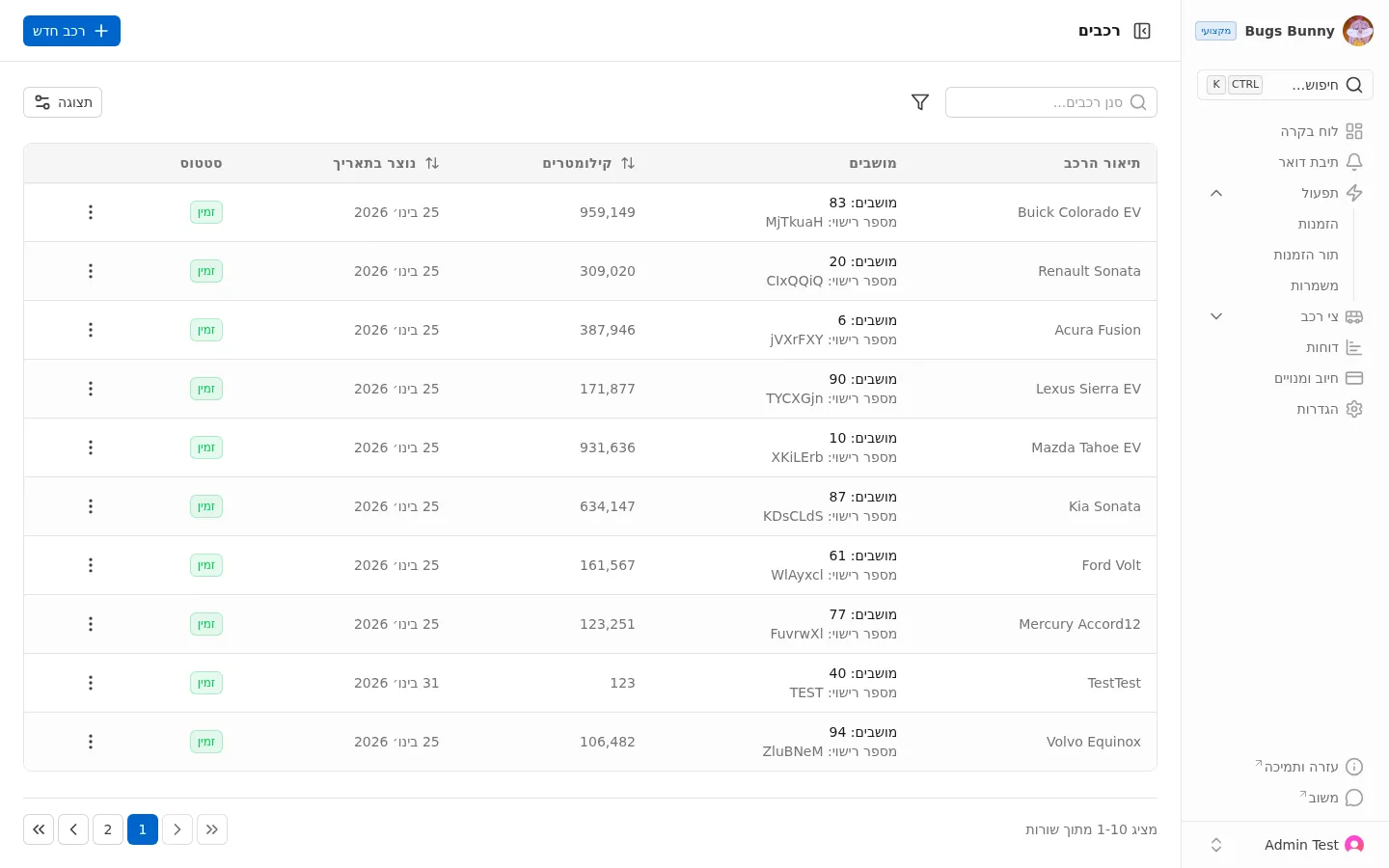
כל רכב כולל:
- שם — שם הדגם
- מקומות — מספר המושבים
- מספר רישוי — לוחית הרישוי
- קילומטרים — מד הקילומטרים הנוכחי
- סטטוס — זמין או לא זמין
4. סטטוס לאחר השיוך
ההזמנה עוברת מהתקבל לשובץ, ומופיעה במונה בביצוע לאחר תחילת הנסיעה.
טיפים
- רכב פנוי — בחרו רק רכבים בסטטוס זמין
- התאמת מקומות — ודאו שמספר המקומות מתאים למספר הנוסעים