Read the reports and know what every number means
Rides, drivers, vehicles and orders in the range you pick, with clear percentages and export to a file.
What you'll achieve
- Pick a date range and see its data
- Understand how each percentage is calculated, including a ride completed on time
- Move between rides, drivers, vehicles and orders
- Export the report to a CSV file
Before you start
- Admin access in your organization
- The Professional plan or higher
- Rides and orders in the range you pick
On this page
Why it matters
A number without a definition misleads. “80% on time” sounds good, until you find it is counted differently from what you assumed. The reports show every rate as a percentage, and this guide shows exactly what each card counts.
How each metric is calculated
| Metric | How it is calculated |
|---|---|
| Cancellation Rate | Rides that were canceled, divided by all rides in the range |
| On-time rate | Rides completed at or before the estimated arrival time, divided by rides completed |
| Utilization | The vehicle’s ride time, divided by all the time in the date range |
| Maintenance Events | Services, repairs and inspections completed in the range. Cleaning and other types are not counted |
Percentages show with at most one decimal, for example 25.3%.
Steps
Open the reports
In the sidebar click Reports. The item shows only on the Professional plan and above. On the Starter plan it does not appear, and opening the address directly shows the message Feature Not Available, with the View Plans button.
Pick a date range
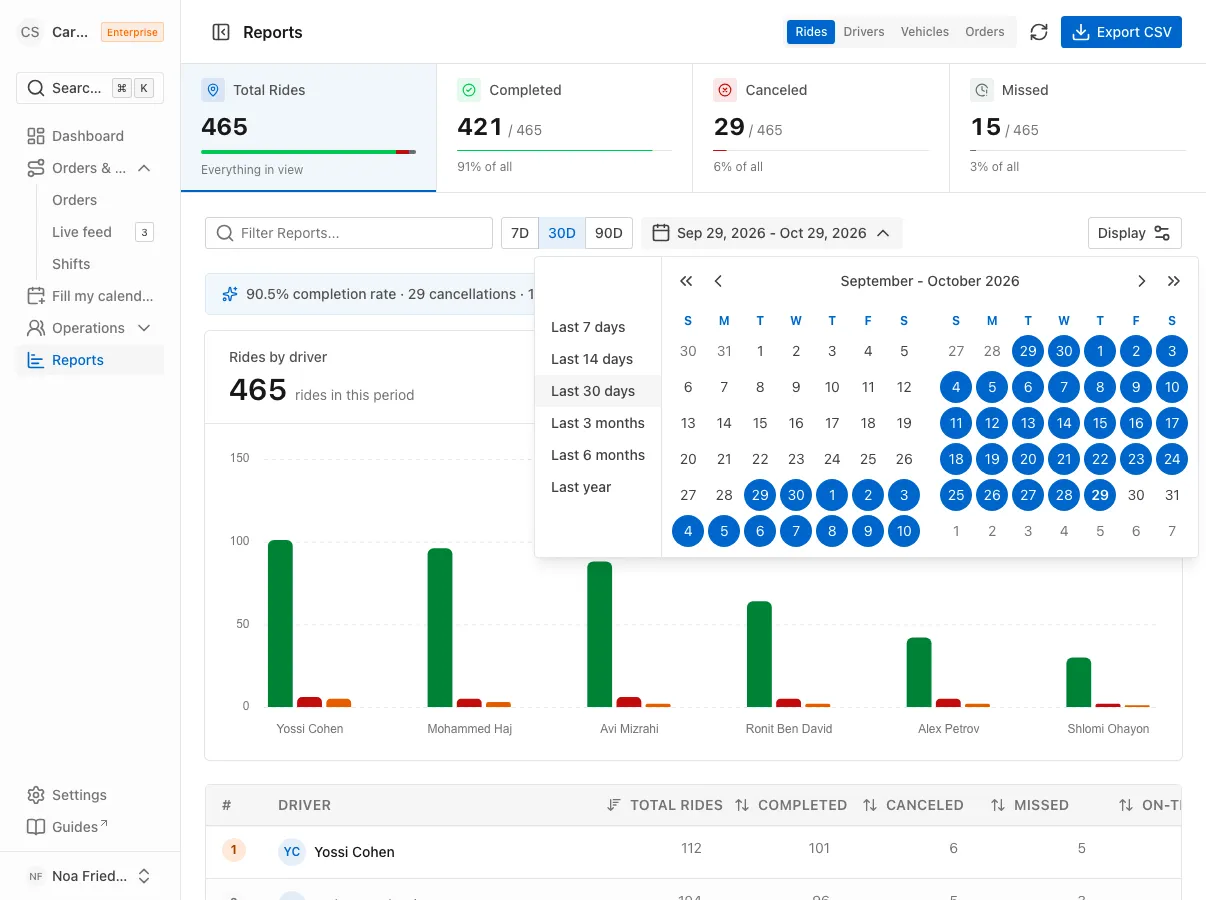
At the top click the dates button. Choose from the list, Last 7 days, Last 14 days, Last 30 days, Last 3 months, Last 6 months or Last year, or mark a range on the calendar. The default is the last 30 days.
The Refresh button loads the data again. When the range is the default, it also moves it up to today.
Read the rides data
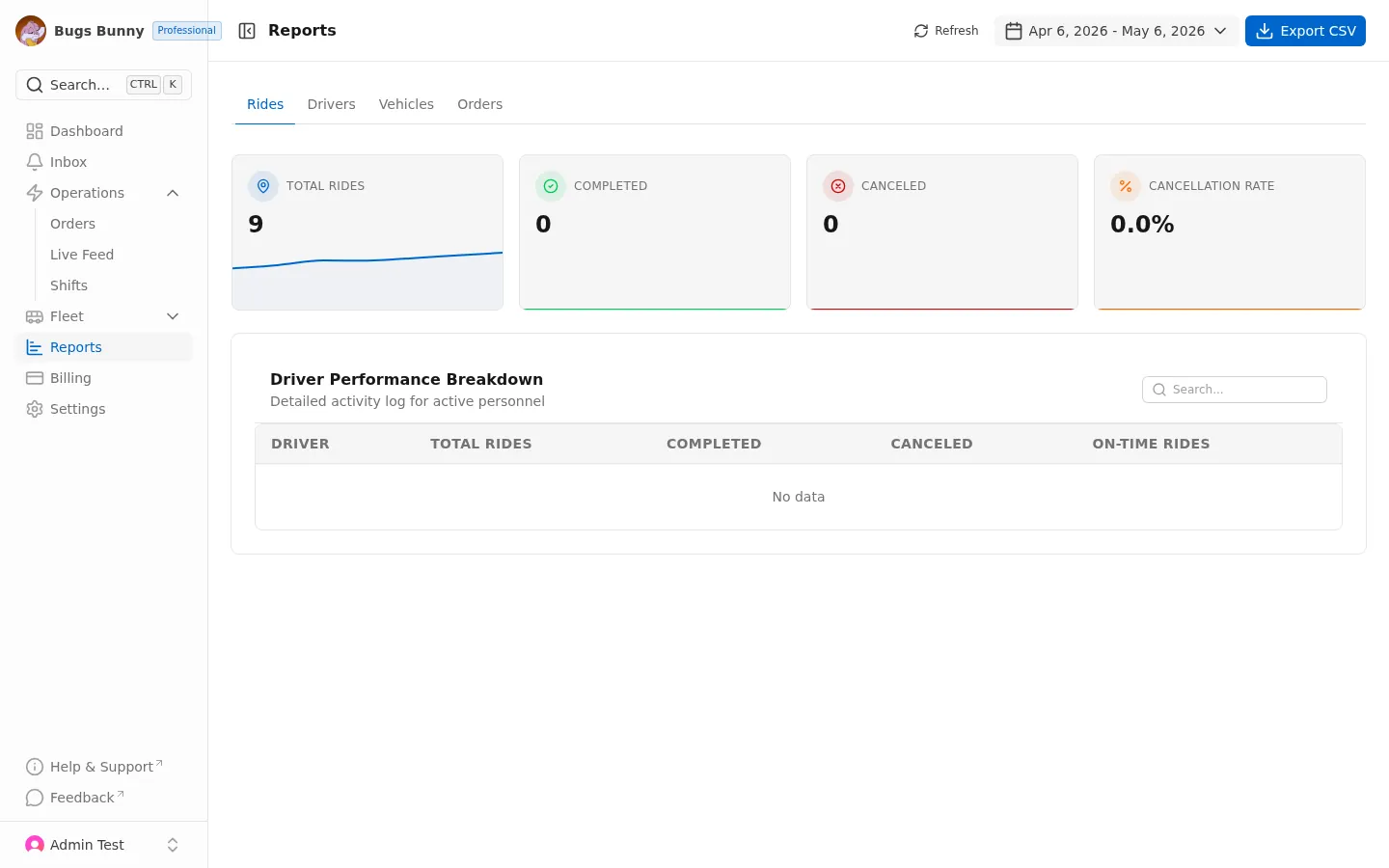
The Rides tab opens first. It has four cards: Total Rides, Completed, Canceled and Cancellation Rate. A ride is counted by its start time. Below is the Driver Performance Breakdown table, with Driver, Total Rides, Completed, Canceled and On-Time Rides. Use the Search… field to narrow it.
Check drivers
Switch to the Drivers tab. The cards are Active Drivers, Avg Rides / Driver, Avg On-Time Rate and Avg Cancellation Rate. The averages are taken across all drivers, driver by driver.
In the Driver Performance Breakdown table every driver gets a row, with the columns Rides, On-Time Rate % and Cancellation Rate %, and a green or red bar next to each percentage.
Check vehicles
The Vehicles tab has Active Vehicles, Avg Utilization Rate and Maintenance Events. The Vehicle Fleet Overview table lists for each vehicle Rides, Utilization Rate % and Maintenance Events. A vehicle with maintenance events is marked with a red badge.
Follow the orders
On the Orders tab the cards are Created, Accepted, Completed and Avg Quote Acceptance Time. The time is shown in seconds. The Order Funnel table shows how many orders reached each Stage: Created, Quoted (received at least one quote), Accepted and Completed (have at least one completed ride).
Export to a file
Click Export CSV in the top corner. The file holds the tab that is open and the range you picked.
FAQ
Why are the reports missing from the sidebar?
They are available on the Professional plan and above. If your plan is Starter, upgrade on the Billing page.
Why are all the numbers zero?
There are probably no rides or orders in the range you picked. Widen the range, for example to Last 3 months, and click Refresh.
Why is a driver’s on-time rate low?
A ride counts as on time only if it was completed at or before the estimated arrival time. A ride that finished later is not counted as on time, and neither is a ride with no estimated arrival time.
How is a vehicle’s utilization defined?
The vehicle’s ride time in the range, divided by all the time in the range. A vehicle that drives two hours a day shows about 8%, even if it works every day.
What’s next?
Was this helpful?
Thanks, glad it helped.
Ask us