Order a shuttle, compare quotes and choose
An order sent, price quotes from providers, and one of them accepted.
What you'll achieve
- Send an order with route, date, time and contact
- Receive price quotes and compare them
- Accept one quote and follow the order
- Delete an order you no longer need
Before you start
- A client account with access to orders
- The pickup and drop-off addresses, a date and an arrival time
- A contact name and phone, and the number of passengers (at least 8)
On this page
Why it matters
You do not need to call providers one by one. You send an order once, providers send price quotes, and you pick the one that suits you. The order turns into rides only after you accept a quote.
What happens to an order
| Status | Meaning |
|---|---|
| Provision | The order was sent and waits for price quotes |
| Accepted | You accepted a quote, and the provider assigns a driver and vehicle |
| Offered | All the rides of the order have finished |
| Canceled | The order was canceled |
Steps
Start a new order and choose a direction
In the sidebar click Orders, then New Order in the top corner. On a phone, the bottom bar has a New order button. Choose Round Trip or One Way, and click Next.
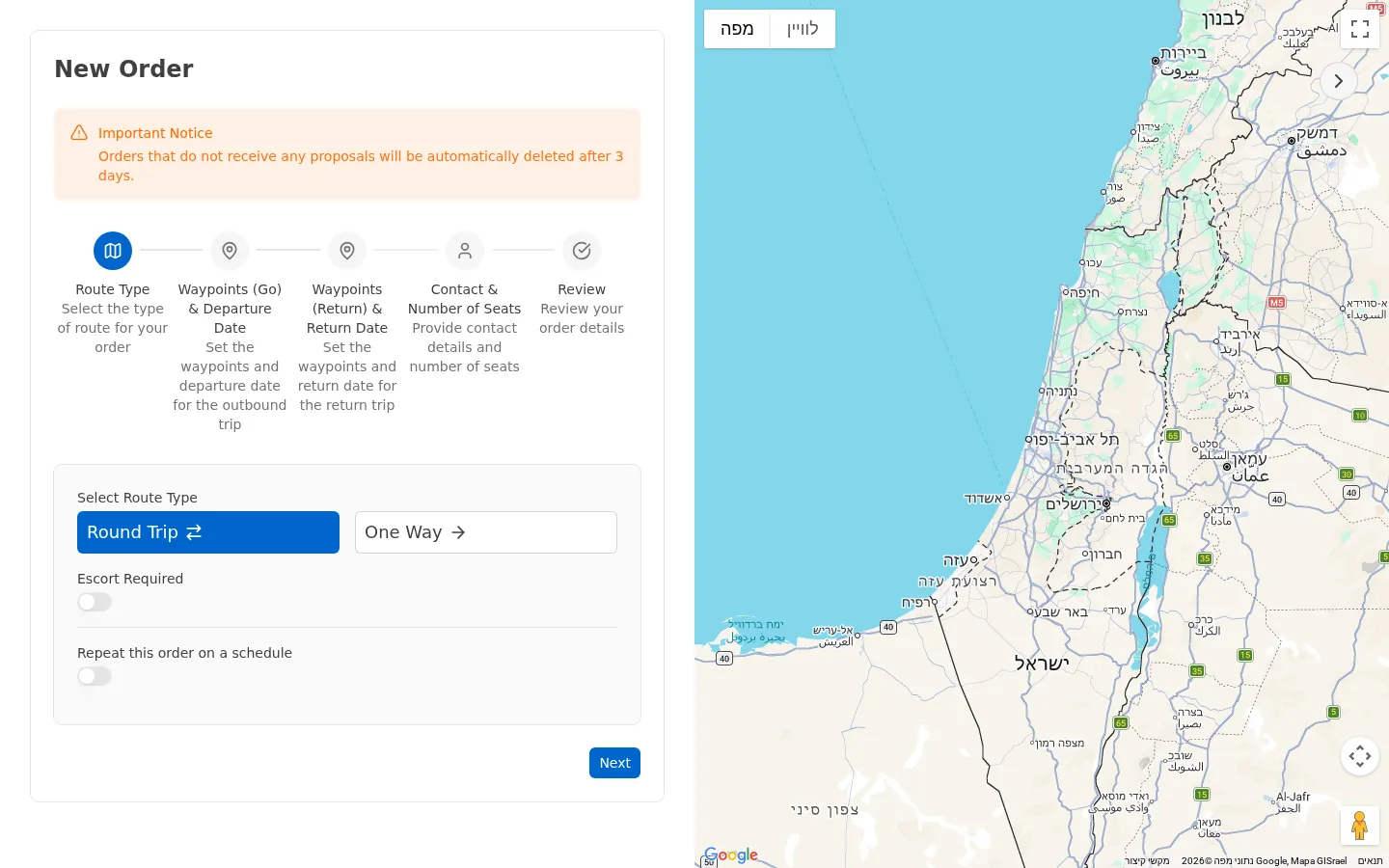
For a regular shuttle turn on Repeat this order on a schedule and choose the Frequency, Start Date and End Date.
Add the stops
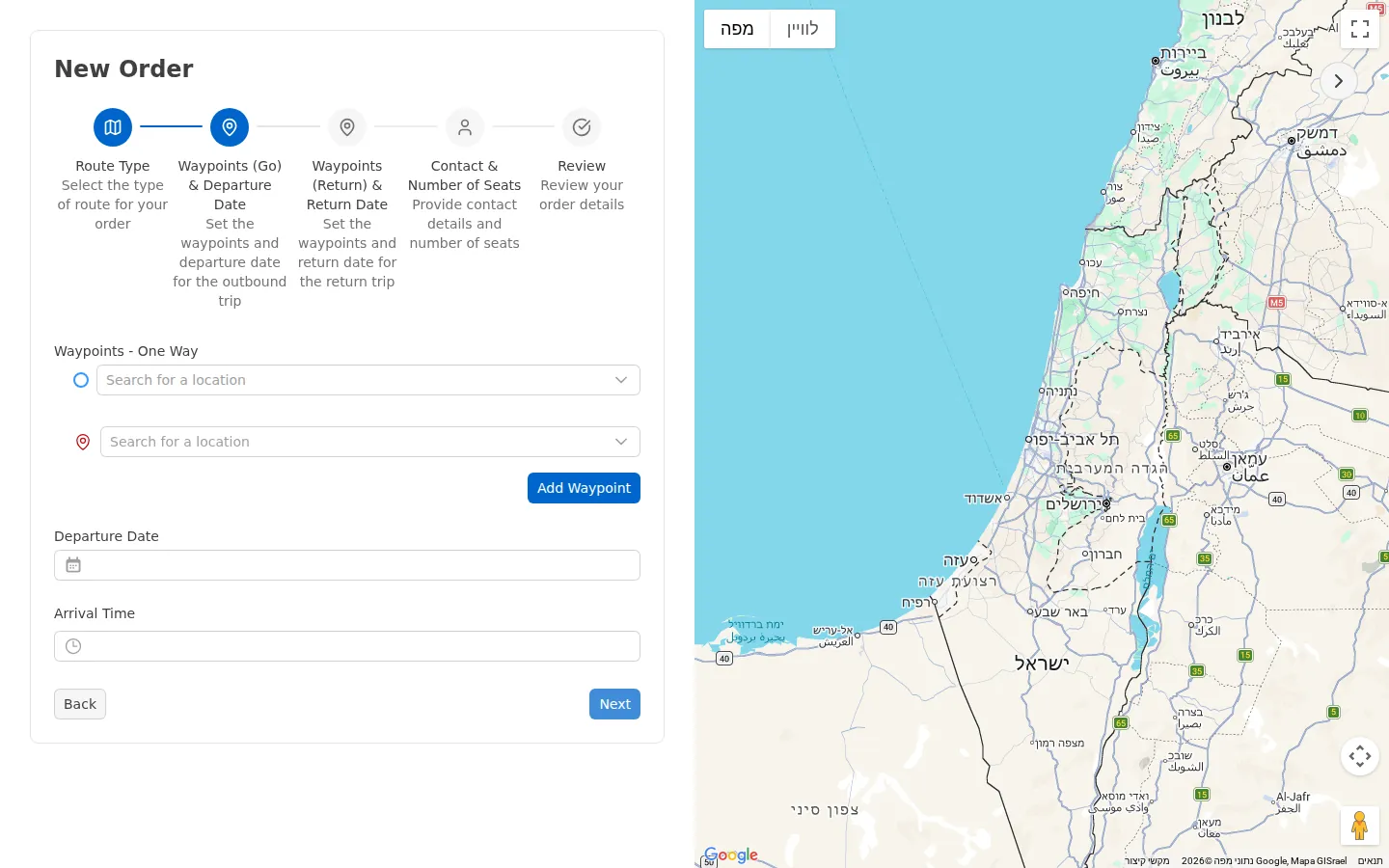
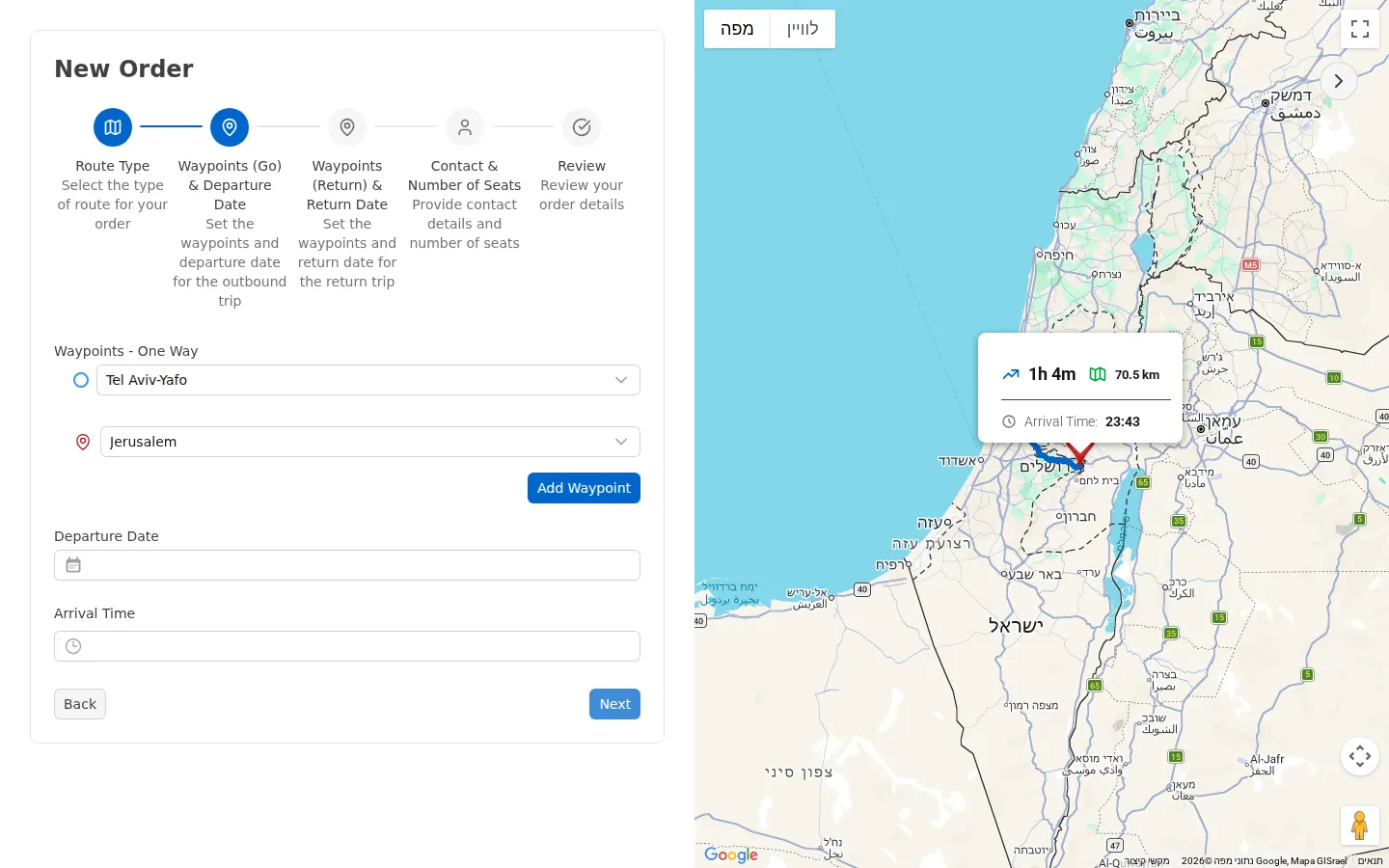
On the Waypoints (Go) & Departure Date screen type in Search for a location and choose an address from the list, for both the pickup and the drop-off. For an in-between stop click Add Waypoint. The map draws the route.
Set the date and time
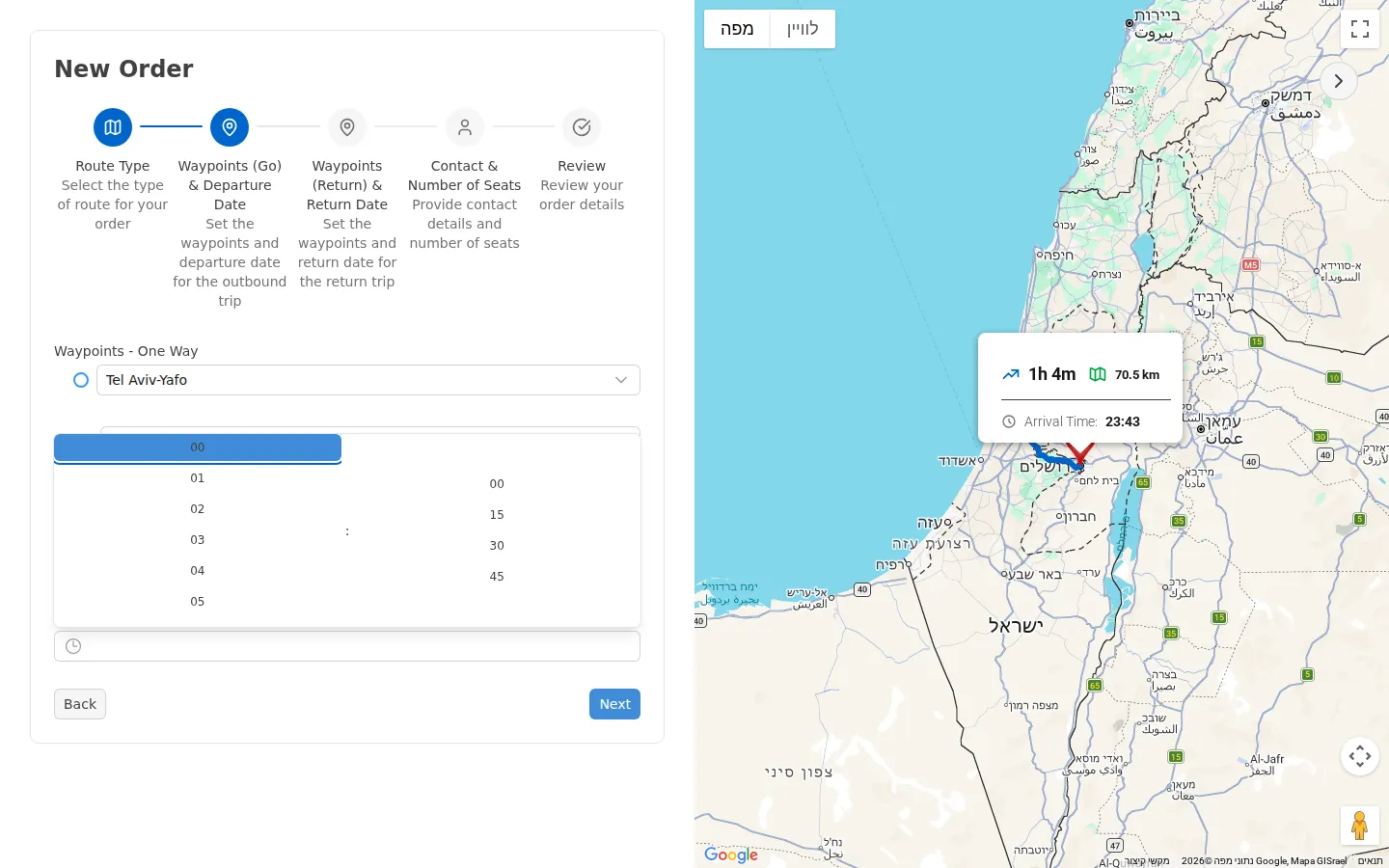
In Departure Date choose a day from today onward, and in Arrival Time choose an hour. For a round trip there is one more screen, Waypoints (Return) & Return Date. Click Next.
Fill in the contact details
On the Contact & Number of Seats screen fill in:
- Seats Number, at least 8
- Contact Name, letters only
- Contact Phone, digits only
- Comment, if you have a special request
A client order has no price field. Providers set the price in their quotes.
Review and send
On the Review screen you see the Order Summary Review with the DRAFT badge. Check the route, dates and phone, and click Submit. The Order Created successfully message appears, and you return to the list with the order in the Provision status.
Compare quotes and choose
When a provider sends a quote, you get a notification, and in the order’s row, in the Price column, the You have new quotes button appears. Click it. After you have seen them, the button reads View quotes.
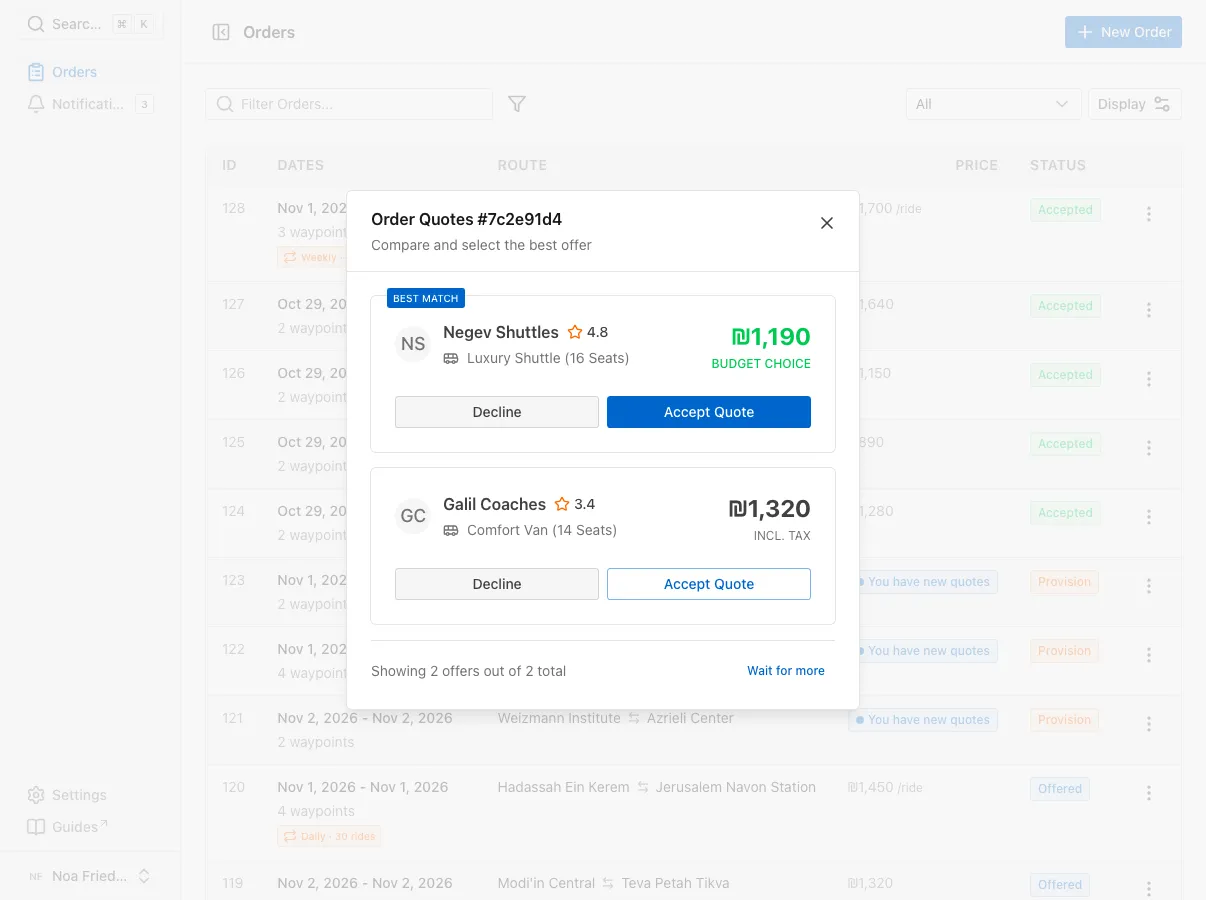
In the Order Quotes window each quote shows the provider’s name and the price, tax included. The cheapest quote is marked BUDGET CHOICE. The BEST MATCH badge is only a suggestion from the system, so check the price and the provider before you accept.
Click Accept Quote to choose, or Decline to pass. The Order quote accepted successfully message appears, the window closes, and the status becomes Accepted. If you are not ready to decide, click Wait for more.
Follow the order
Click a row in the orders list. A side panel opens with the status, price, seats, date and stops, and the tabs Order Summary and Live Map. Open Order page shows the same information on a full page.
Delete an order
At the end of the row open the Actions menu and choose Delete Order. In the Delete Order window you see Are you sure? This action cannot be undone. Click Delete, and the The order has been deleted. message appears.
Common mistakes
- Sending fewer than 8 seats. The form requires at least 8 seats. Enter a higher number.
- Choosing a date in the past. The departure date must be today or later.
- Expecting an order with no quotes to stay open. An order that receives no quote is deleted after 3 days. Send it again with an updated date.
- Accepting a quote without checking the total. On a recurring order the price shown is per ride. Read the amount on the accept button before you click.
What’s next?
Was this helpful?
Thanks, glad it helped.
Ask us