Assign a driver and vehicle right from the Shifts page
A ride with a free driver and vehicle, and you see what the new assignment replaces before you save.
What you'll achieve
- Open a pending ride and assign it without leaving the Shifts page
- Understand why some drivers and vehicles are greyed out
- See what the assignment replaces before you save
Before you start
- Admin or dispatcher access in your organization
- At least one driver and one vehicle in your organization
- A ride that is Pending, or one that has not started and you want to reassign
On this page
Why it matters
Assignment is the moment a ride turns from a request into something that happens. On the Shifts page you see the ride, who is assigned to it and who is free, all in one panel. The system only offers what fits, so fewer assignments come back to you with an error.
What the lists show
| Item | What appears | How it looks |
|---|---|---|
| Vehicle | Only vehicles free in the ride’s time window | A vehicle with too few seats is greyed out, at the end of the list |
| Driver | Every driver in your organization | A driver with another ride at the same time is greyed out, with Busy in this window |
| Current assignment | The vehicle and driver already assigned | Stay selectable, even if busy or too small |
Steps
Open a ride on the Shifts page
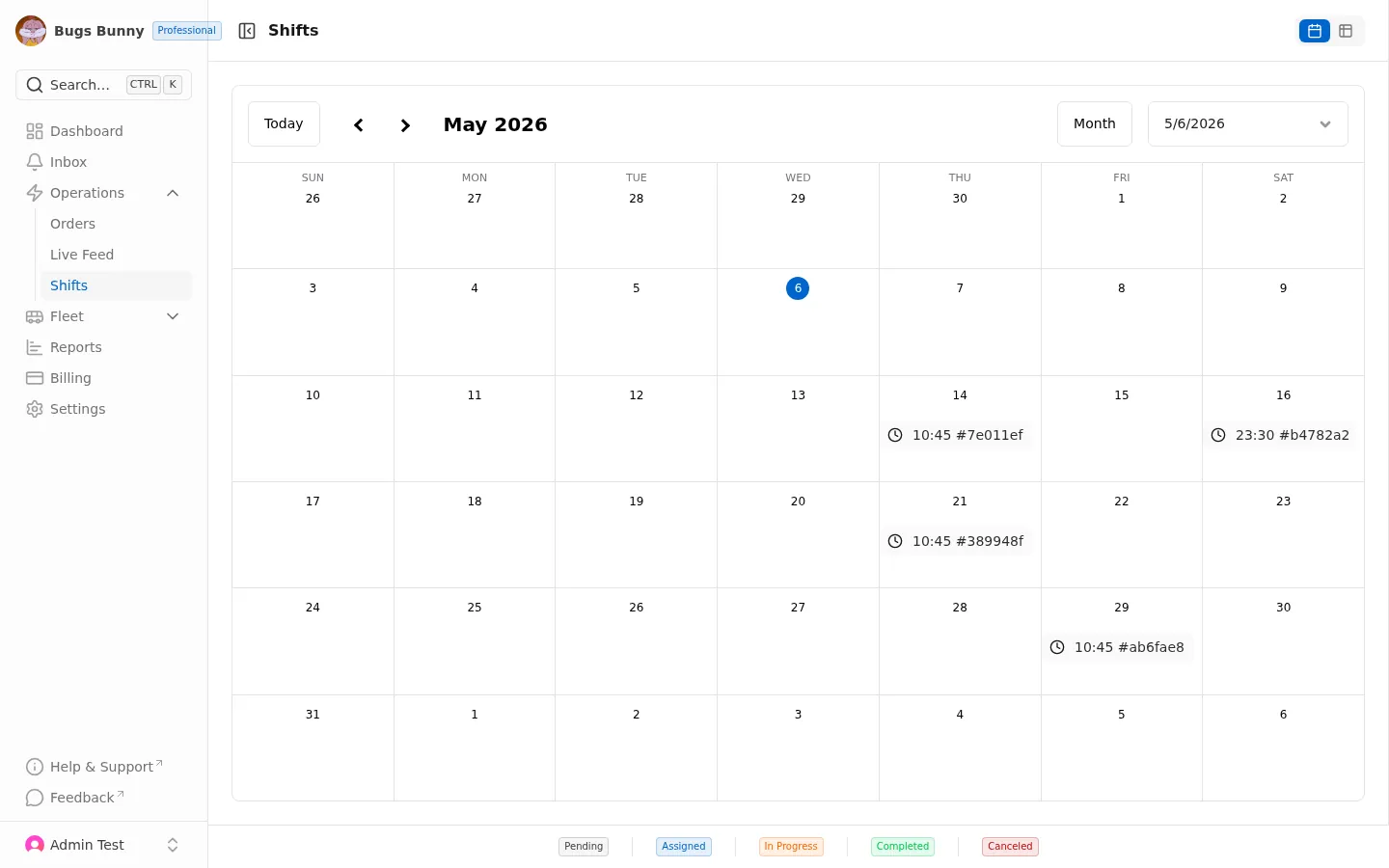
In the sidebar, open Orders & Rides and choose Shifts. Click a ride on the calendar, or a row in the table view. A side panel opens with the ride details, and the status badge at the top, for example Pending.
Find Assignment Selection
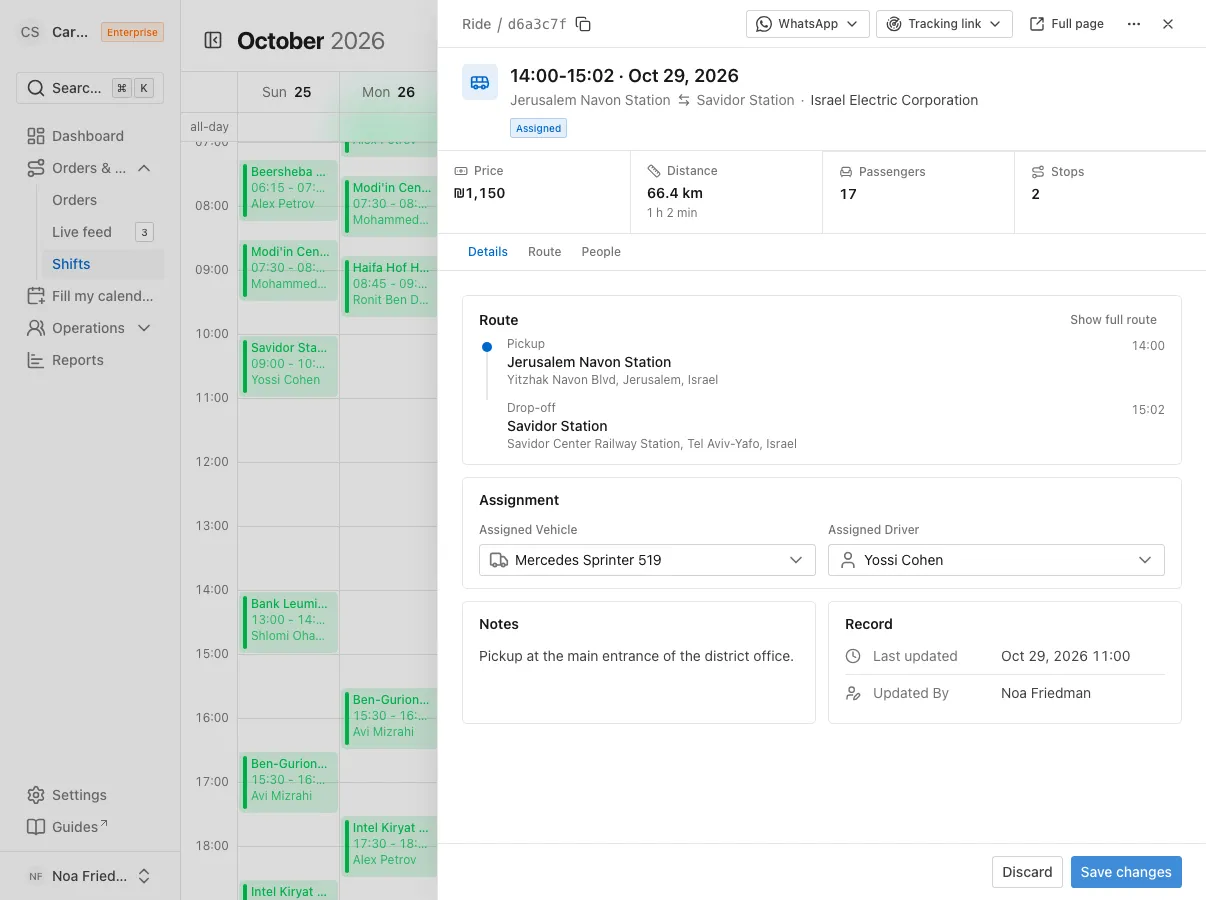
Scroll the panel to Assignment Selection. It has two fields: Assigned Vehicle and Assigned Driver. With no assignment, they show Select a vehicle… and Select a driver….
Open the driver list
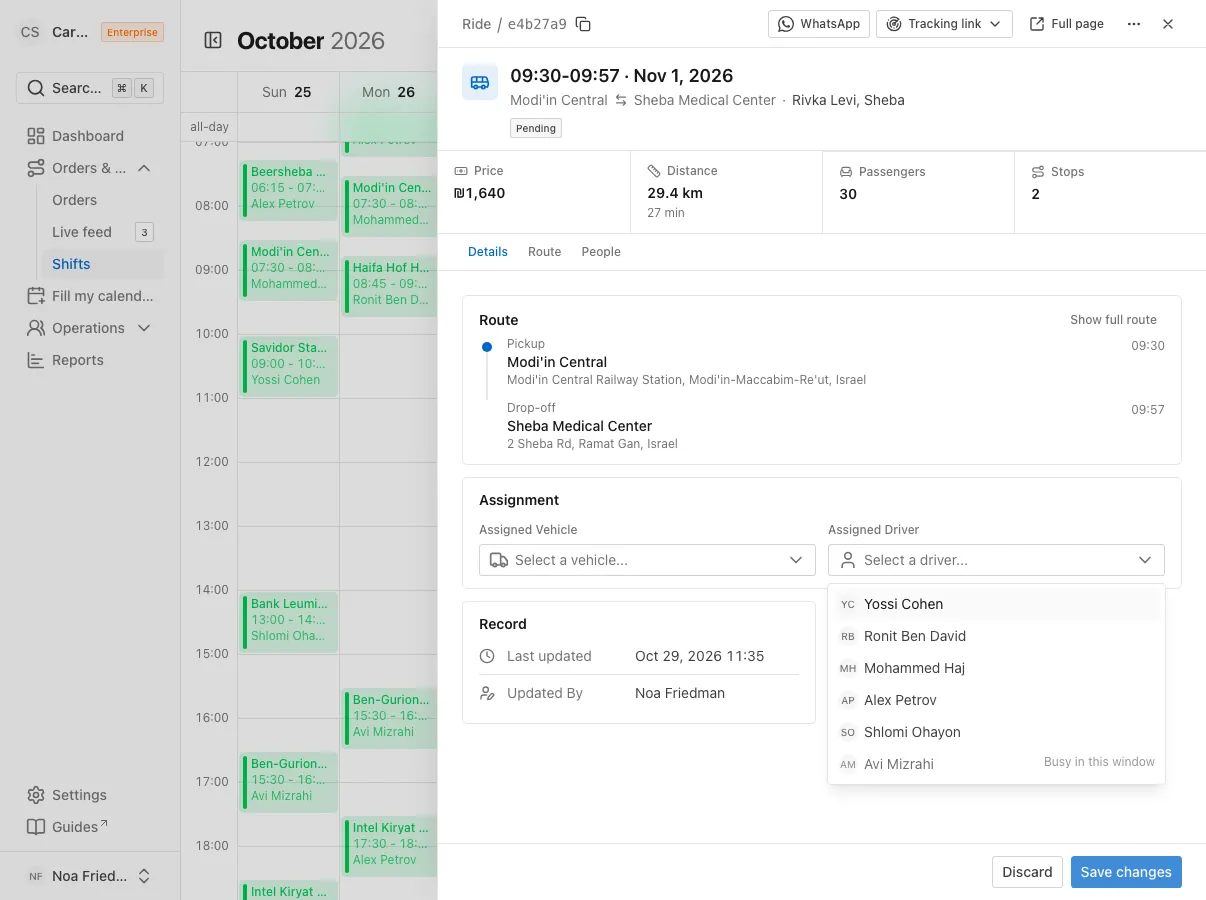
Open Select a driver…. Free drivers come first. A driver with another ride at the same time is at the end, greyed out, with Busy in this window. You cannot pick them, but you can see they exist, so you will not think the list is missing someone.
The vehicle list holds only vehicles free in the ride’s time window. A vehicle with too few seats is greyed out. On the full ride page you also see the reason, for example 8 seats, needs 12.
Pick a vehicle and a driver
Choose a vehicle, then a driver. You must pick both. A small button next to each vehicle opens the vehicle page in a new tab, in case you need to check it.
Check what the assignment replaces
When your pick differs from the current assignment, a small line appears under the field: Replaces and the name of the previous driver or vehicle. An assignment always replaces and never adds, and this line tells you so before you save.
If the selected vehicle is too small, the Not enough seats alert appears, with the vehicle’s seats and the seats the ride needs.
Save the assignment
Click Save Changes. The Changes have been saved successfully message appears, the panel closes, and the ride on the calendar moves from Pending to Assigned.
If a vehicle or driver is missing, you get Some information is missing. Check the highlighted fields and try again. and the missing field turns red. The panel stays open and nothing is lost.
Assign from the full ride page
In the table view, open the Actions menu at the end of the row and choose View Ride Details. On the Ride Details page, open the Assignment tab. You see Current Assignment and the two lists. Click Save. After saving, the page stays open and refreshes.
Common mistakes
- Looking for a driver you cannot select. They are probably busy in this window. If they are not in the list at all, check that they joined your organization on the Crew page.
- Missing a vehicle you know. The list holds only vehicles free during the ride. A vehicle assigned to another ride at the same time does not appear.
- Saving only a driver or only a vehicle. Saving needs both. Fill in what is missing and save again.
- Getting an error about a clash. If it says Cannot assign, the driver or vehicle got another ride at that time while the panel was open. Pick another and save again.
What’s next?
Was this helpful?
Thanks, glad it helped.
Ask us